By default, eM Client stores all of its data in the Database, location of which you can find and even change in the Storage settings. The Data File feature is designed to allow you to split that data and have the option to unlink it when you don't need it or to share it easily with others. Similar to how other programs might treat PST files but without the size limitations.
Data File is a small separate local database that can be connected to eM Client to use when you need it (mount/unmount). The data file will be in our custom file format EMDF (eM Client Data file).
You can, for example, move your Archived emails into a separate Data File and then unmount it so your "daily" folders are searched and synchronized faster. The Data File, since it's a separate database, can also be stored in a different location from the main database, even another/external drive or cloud storage, so you can have the main database take up less space on your C: drive.
Data Files can be used to easily share some messages with other colleagues - instead of importing your messages into their own folders, they can just mount the shared Data File and unmount when no longer needed.
You can create a new Data file manually or convert old PST files into eM Client Data Files (Menu > File > Import). You cal also drag & drop an EMDF or PST file onto the folder list to create and/or mount it.
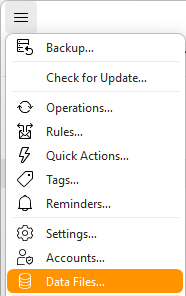
You can find your data files in Menu > Data Files section.
This opens the Data Files Manager.
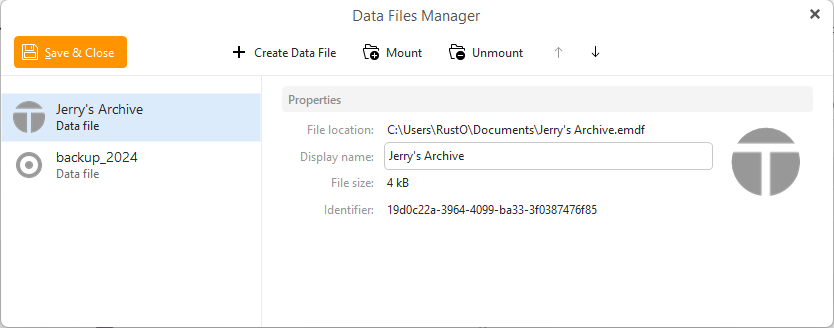
Save & Close - Save all changes to your data files and close this window.
+ Create Data File - Allows you to select a location in which to create the EMDF file.
Mount - Add a data file to eM Client, it will be added into the Data Files section in the folder list.
Both Create and Mount options will open the system's file explorer so you can select the location of your data file.
Unmount - Remove the Data file from eM Client. The actual EMDF file will stay in your device, but eM Client will not have access to it to view it, search in it, etc.
Up/Down arrows - Change the order of your Data files in the folder list.
The section below the toolbar is similar to Accounts window, where you can see the list of your Data files on the left, and see the details on the right. You can change the display name of your Data file as well as the Avatar.
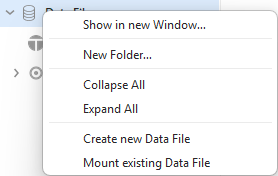
The Data Files section will offer similar options to the manager so you can mount and unmount data files quickly.
If you right-click a specific Data file, you get options similar to Account and separate Folder menus.
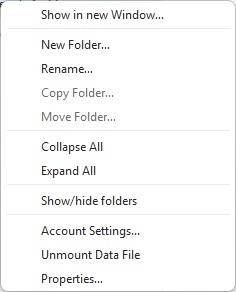
You can Rename the data file here, add New folders into it.
Copy/Move options will be available for subfolders.
You can Show and Hide folders similarly to any other account.
You can also directly access the Accounts settings or Unmount the data file quickly, or view its Properties.